 TruePx
Docs / Side panel
Page tab
The page as a whole: how heavy it is and what makes it heavy, its color palette and type styles, every image and SVG ready to download, the technologies it’s built with, and the pins on it.
Open it#
Open the side panel (0 or the dock button) and choose Page. The header shows the page title and address. The page is read when TruePx starts; if it changed since (new content loaded, you scrolled to lazy images), click Refresh.
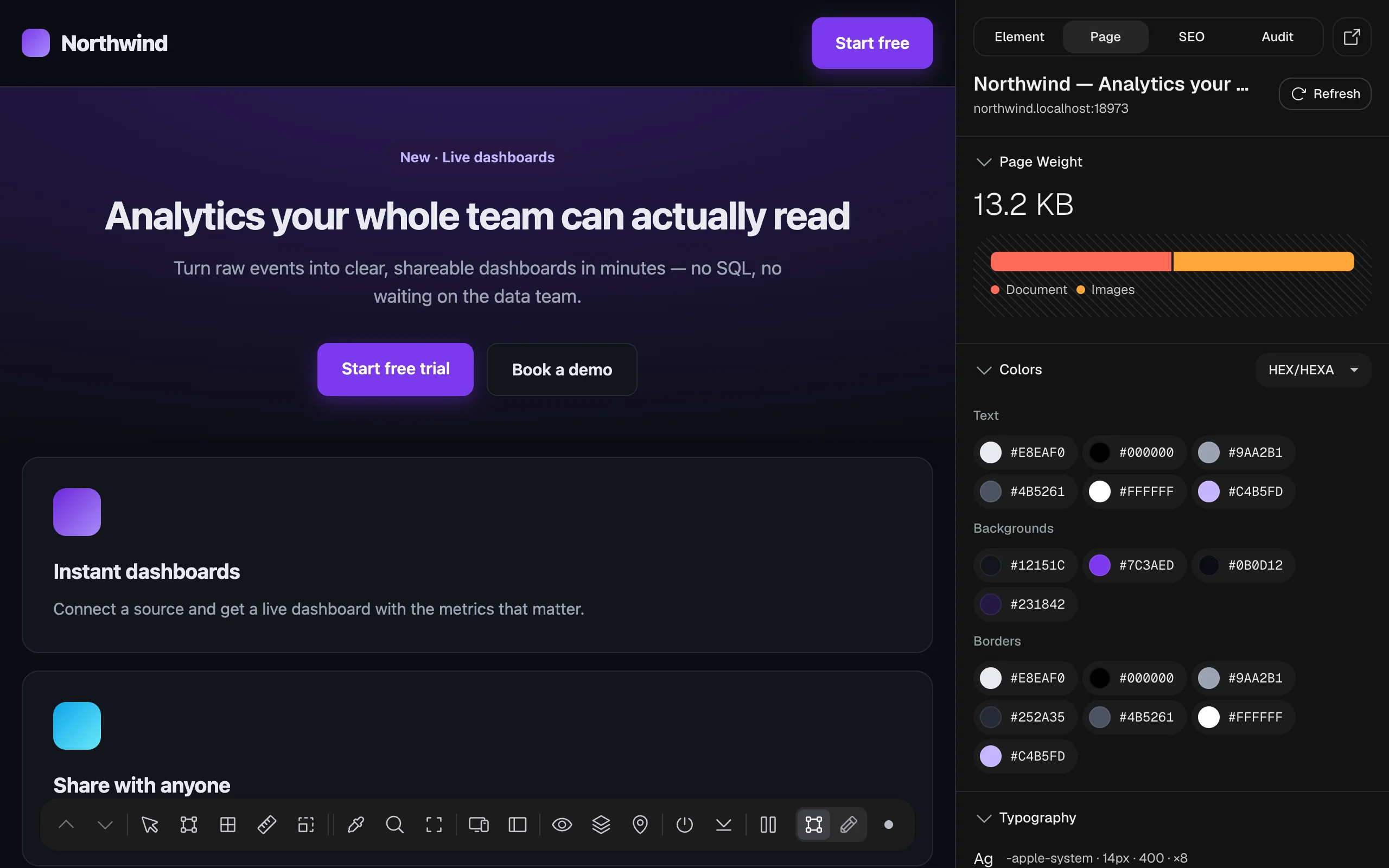
Page Weight#
The total size of everything the page has downloaded, and a bar split by type: Document (the HTML), Scripts, Stylesheets, Images, Fonts, Media, Fetch/XHR (data loaded by scripts) and Other. Hover a part of the bar, or a name under it, to see its size and how many files it has.
It’s read from the browser’s own timing records for this visit. Files from other sites that don’t share their size (a browser privacy rule) count as zero, so the real total can be higher. For an exact, file-by-file measurement, use Measure the real page load in the Audit tab.
Colors#
Every color the page uses on screen, grouped into Text, Backgrounds and Borders (up to 16 of each). It’s the quickest way to pull a site’s palette, or to spot five slightly different greys that should be one. Click a color to copy it; the menu switches between HEX, RGB, HSL and HSB.
Typography#
The 12 most used text styles on the page, each as font family · size · weight · how many times it’s used (for example -apple-system · 15px · 400 · ×7), with an “Ag” sample in that style. Use it to find the fonts a site uses and to check that body text, headings and buttons follow a consistent type scale.
Assets#
The images and inline SVGs on the page as a grid of tiles, with a count (“Images: 1 · SVGs: 3”). Each tile shows the format and size; click a tile to download that file. The first two rows show at first; open the rest with Show all under the grid. The sun/moon button puts the tiles on a dark background, so white logos and icons are visible.
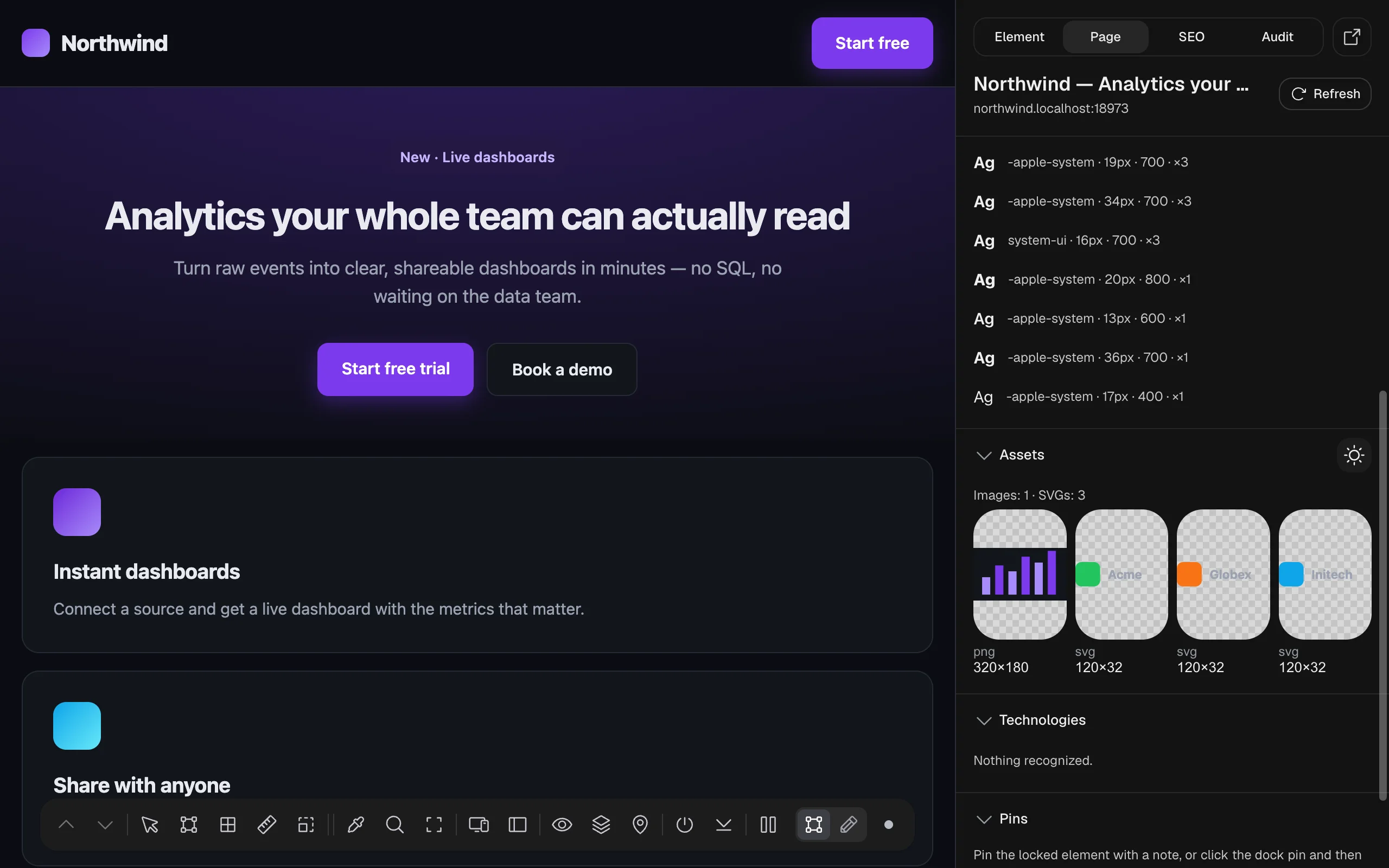
The grid lists up to 40 images (including CSS background images) and 20 SVGs; 1 × 1 tracking pixels are left out. A page without any says “No images or SVGs on this page.”
Technologies#
What the page is built with: site builders and CMS, frameworks and libraries, hosting and CDNs, analytics, consent tools and more, out of the 7,600+ technologies TruePx recognizes.
- Technologies are grouped by category, with the version when the page gives it away. One that belongs to two categories shows in both.
- A badge such as 50% sure means the clues aren’t conclusive. No badge means TruePx is sure.
- Click a technology to see why it was found, up to three clues such as
Script jquery-3.7.1.min.js,Meta generator="WordPress 6.6",Cookie laravel_sessionorImplied by WordPress, and a link to its website. - The first 15 show right away; Show more opens the rest. Type in Filter to find a technology or a category.
- The buttons next to the title copy the list or download it as CSV or JSON.
It reads the page’s address, meta tags, scripts and their addresses, text and CSS, the hosts the page calls, its JavaScript globals and HTML, the response headers and cookies. Some scripts set up late, so it waits until about 6 seconds after the page started loading and shows Detecting technologies… until then. When you open the Page tab again, it scans again by itself if the page has loaded new scripts or contacted new hosts since. Refresh runs it again at any time.
The first time it runs, TruePx downloads the dataset (0.7 MB) from jsDelivr and keeps it in your browser. The download sends no page data. Settings → Technology data shows the version you have and can delete it. The privacy policy has the details.
A note under the list says when the result may be missing something:
- Couldn’t download the technology data: you’re offline or jsDelivr can’t be reached, so this is TruePx’s short built-in list. Click Retry.
- Allow site access to also check HttpOnly cookies and scripts from other sites: without TruePx’s optional site access, cookies the page keeps from its own scripts, and scripts served from other sites, can’t be read, so server software such as PHP or Laravel may be missing. Click Allow site access; Chrome asks you first. Cookie values never leave TruePx.
- Response headers couldn’t be read: the site refused TruePx’s second request for the page, often because of a bot check, so server and hosting checks were skipped.
“Nothing recognized.” means no technology in the dataset matched. AI agents get the same list from page_tech_stack.
Pins#
The notes pinned to elements on this page. Select an element, type a note and click Pin selection to add one. Each pin shows its element’s path and note, with Show (scroll to it), Resolve / Reopen and Delete. See Pins for the full workflow, and AI agents for having an agent work through them.