 TruePx
 Docs / On the page
Inspect & capture
Read an element’s CSS without opening DevTools, find every element that matches a selector, pick any color on screen, and save a clean screenshot of one element.
Inspector card#
Dock: Inspector · Key: 1
A card follows the pointer and shows the CSS of whatever you hover, grouped the way you think about it:
- Box Model: width, height, display, box-sizing, padding and gap.
- Appearance: border radius, background color, text color, border, opacity and box shadow.
- Text: font family, size, weight, line height, letter spacing and alignment.
- Visual: transform, filter and backdrop filter.
- Image (images only): the file’s own pixel size, its file size and its format.
Properties left at the browser’s default are skipped, so the card stays short. Colors show a swatch.
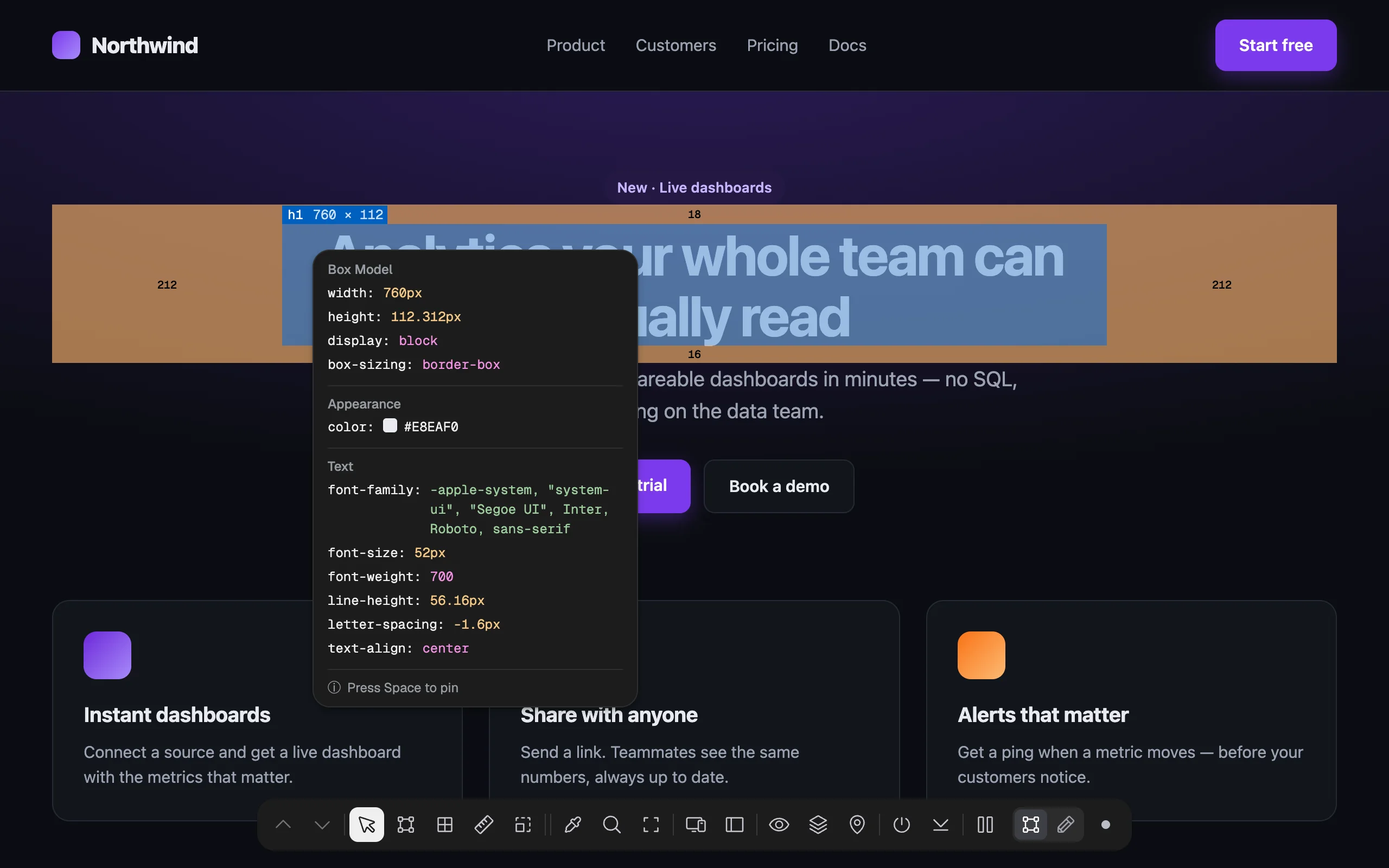
Press Space to pin the card where it is. Pinned cards stay on screen while you hover something else, so you can compare two elements side by side. Drag a pinned card to move it, and close it with its ✕. Turning the Inspector off (1) also releases the selection.
For the complete CSS of an element, including the rules it came from, use the Element tab.
Find by selector#
Dock: Find by selector · Key: 7
Type a CSS selector, such as .card, h2, a[target=_blank] or nav > ul > li. Every match gets a see-through tint and an outline, and the page scrolls to the first one. Results update as you type. The box shows where you are, for example 1 of 3; use its up and down arrows to step through the matches.
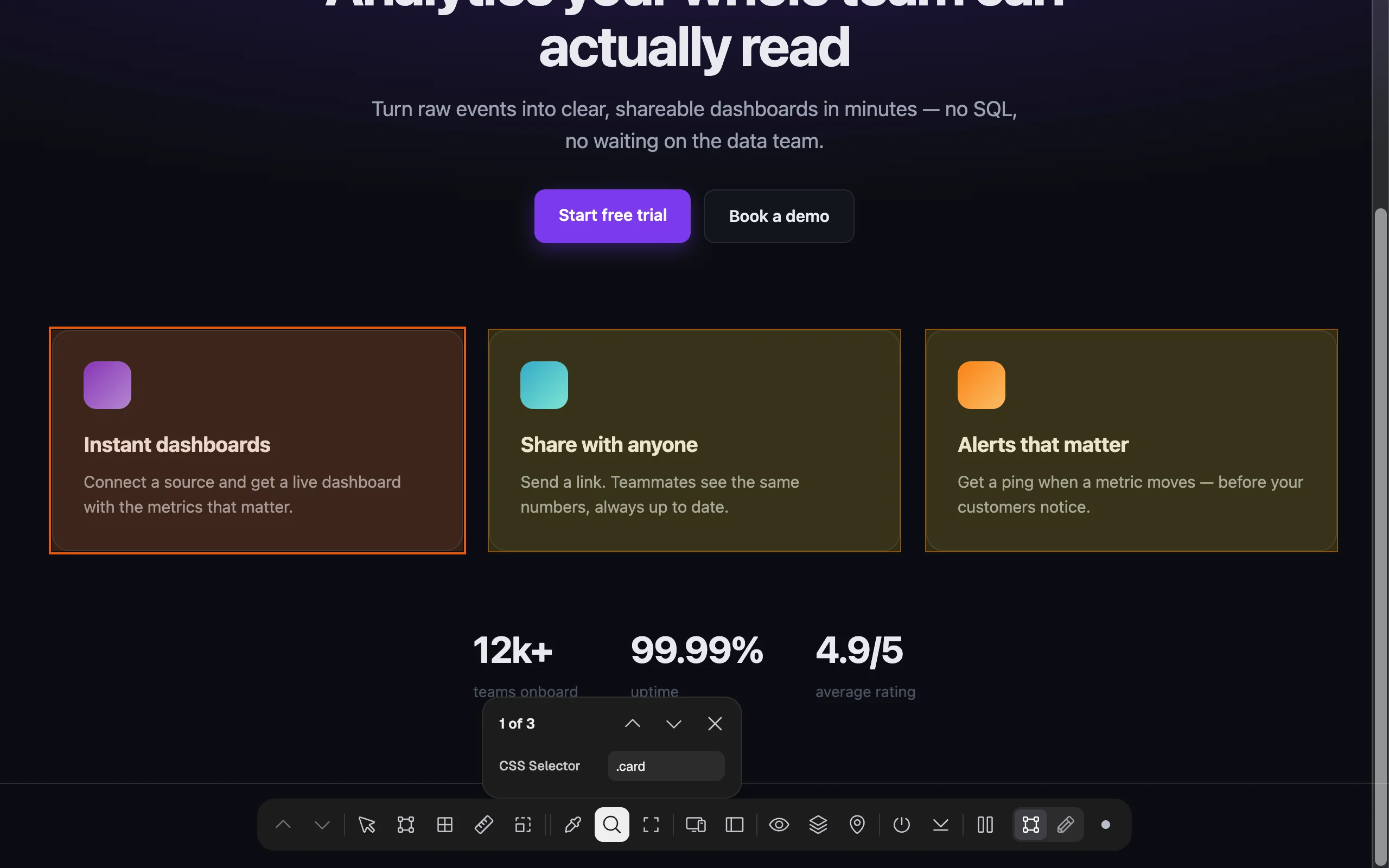
.card matches three elements; the first is the current one.- Matches you can’t see right now (inside a closed menu, zero-size, or parked off the page like skip links) are counted separately: 2 of 4 · 3 hidden. The arrows step only through visible ones.
- A selector the browser can’t parse shows Invalid selector; one that matches nothing shows No matches.
- Close the box with ✕ or Esc, and the highlights go with it.
Handy for checks like “how many h1 are there?”, “which links open a new tab?” or “where else is this class used?”. In the responsive preview, Find searches inside every viewport.
Color picker#
Dock: Color Picker · Key: 6
Turns the pointer into Chrome’s eyedropper with a magnifier. Click any pixel (text, a photo, a gradient) and its color is copied to your clipboard as HEX, for example #7C3AED. A note above the dock button shows the color and the copied value. Press Esc to cancel.
To copy colors in RGB, HSL or HSB, use the color lists in the Element tab or Page tab, which have a format menu.
Element screenshot#
Dock: Screenshot · Key: 8
Saves a PNG of one element, sharp at your screen’s resolution:
- Select an element (click it), or just hover it.
- Press 8. The page flashes, and a PNG downloads.
The image is the element plus 50 px of the page around it. By default it’s placed on a light grey backdrop with rounded corners, and in Inspect mode it includes TruePx’s size label and spacing highlights, ready for a bug report or a design review. Turn either off in Settings → Screenshots. With nothing selected or hovered, it saves the visible part of the page. The dock and the Inspector card are left out.
The file is named after the page address, so screenshots from different pages don’t overwrite each other.
If you see “Screenshot blocked”, Chrome no longer lets TruePx capture this tab (this happens after the tab moves to another site). Turn TruePx off and on again with the toolbar icon, then retry. Granting all-sites access avoids it.