 TruePx
 Docs / More
AI agents (MCP)
Connect Claude Code, Cursor, Windsurf or any agent that speaks MCP, and it can measure, inspect, audit and edit the page in your browser, with 61 tools, the same way you do with the dock.
What it does#
MCP (Model Context Protocol) is how AI coding agents use outside tools. TruePx comes with a small bridge, truepx-mcp, that your agent starts on your computer. The bridge passes the agent’s requests to the TruePx extension and the answers back. Then you can ask things like:
- “The card padding on this page doesn’t match the design. Measure it and fix the CSS in my repo.”
- “Run the audit on the open tab and fix the accessibility errors in our components.”
- “Check the page at 390, 768 and 1280 px and tell me where the layout breaks.”
- “Work through my pins on this page.”
The agent only sees tabs where you turned TruePx on, and everything stays on your computer: the extension talks only to the bridge at 127.0.0.1.
Set it up#
You need Node.js 18 or newer. Open TruePx’s settings (right-click the toolbar icon → Options, or click the dot at the right end of the dock) and follow the three steps under AI agents (MCP):
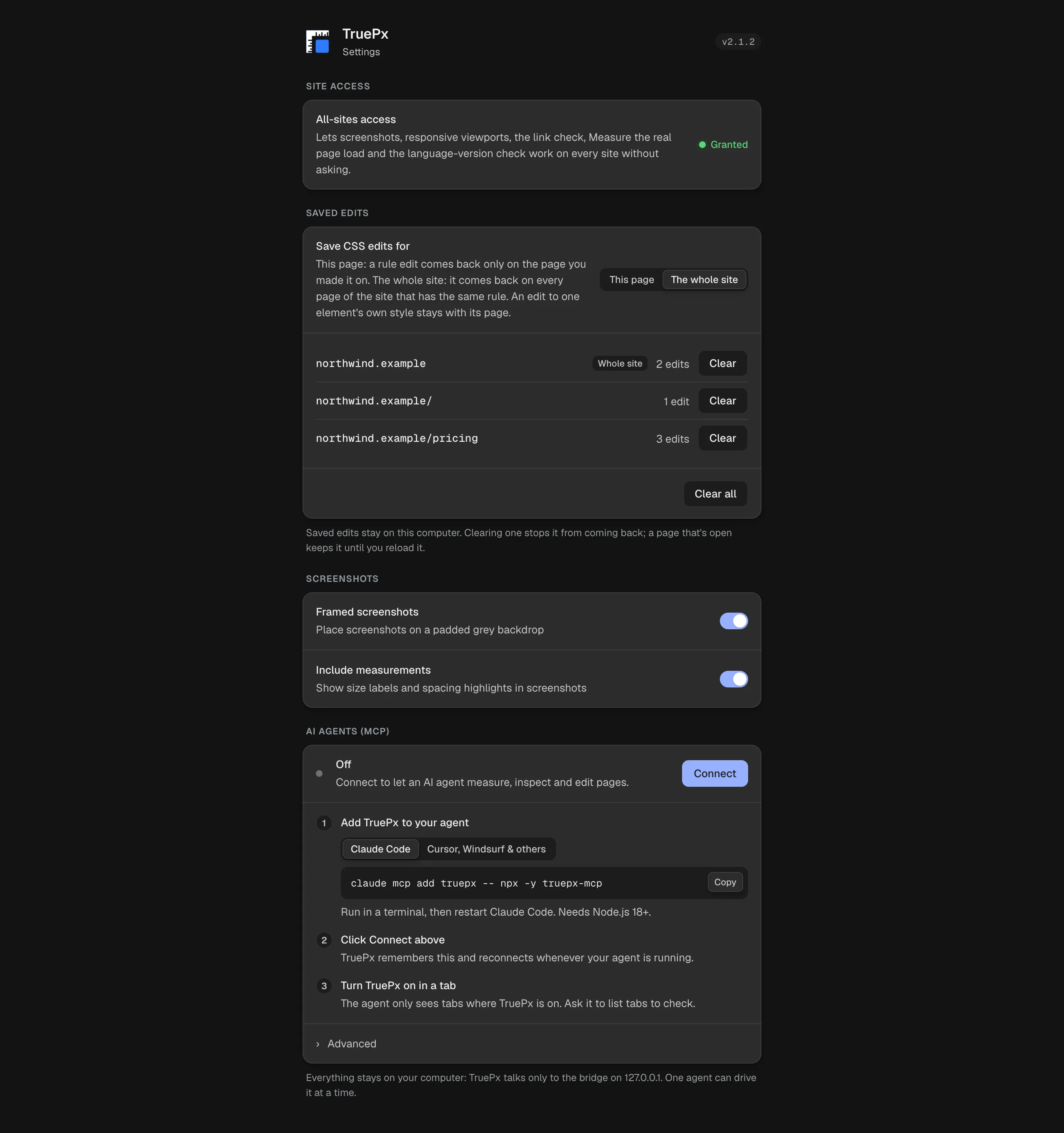
1. Add TruePx to your agent#
Claude Code: run this in a terminal, then restart Claude Code.
claude mcp add truepx -- npx -y truepx-mcpCursor, Windsurf and other clients: add this to the client’s mcp.json (its MCP settings file), then restart it.
{
  "mcpServers": {
    "truepx": { "command": "npx", "args": ["-y", "truepx-mcp"] }
  }
}
2. Click Connect#
The status changes from Off to Waiting for your agent…, and to Connected (with the agent’s name) once the agent is running. TruePx remembers this and reconnects by itself whenever your agent runs, after a browser restart too. Disconnect stops it.
3. Turn TruePx on in a tab#
Open the page and turn TruePx on (toolbar icon or Alt Shift S). Ask your agent to list the tabs to check it can see it. The dot at the right end of the dock turns green while an agent is connected.
One agent can drive TruePx at a time. If the bridge’s port (47830) is taken on your computer, start the bridge with --port (or the TRUEPX_MCP_PORT environment variable) and enter the matching address under Advanced → Bridge address, then reconnect.
Pins: point at what to change#
Instead of describing an element in words, pin a note on it: click Pin a note for your agent on the dock, click the element and write what should change. Then tell your agent “work through my pins”. It reads them with list_pins (each comes with the element’s selector and position), makes the change, and marks each one resolved. You see the pins in the Page tab and on the page. More in Design QA.
What the agent can and can’t do#
- It works only in tabs where TruePx is on, and only while the bridge is connected.
- Edits change the page in your tab, never the live website. Your agent edits your source files with its own tools.
- Its edits (CSS, classes, text and HTML) show in the Changes tab like yours, and can be undone:
edits_revert_alltakes back everything (saved edits included), and Undo on the dock works too. - Pasted or inserted HTML is cleaned first (no scripts, frames, forms or event handlers).
- Screenshots it takes (
capture_screenshot) go to the agent you connected, like anything else you share with it.
All 61 tools#
Read tools only look; write tools change the page in your tab (undoably) or TruePx’s view.
Tabs and the page#
| Tool | What it does |
|---|---|
ping | Checks the connection to the extension. |
tabs_list | Tabs where TruePx is on (id, address, title). |
tab_focus | Brings one of those tabs to the front. |
page_info | Page metadata: address, title, language, description, Open Graph tags, H1, viewport size, scroll and pixel ratio. |
page_meta | Meta tags grouped as SEO, Open Graph and Twitter. |
page_weight | Downloaded bytes by file type. |
page_tech_stack | Frameworks, CMS and analytics, with versions. |
page_breakpoints | The page’s @media widths, smallest first. |
capture_screenshot | A PNG of the visible page, as an image the agent can look at. |
Finding and reading elements#
| Tool | What it does |
|---|---|
selection_get | The element you selected in TruePx, so “this element” means what you clicked. |
selection_set | Selects, highlights and scrolls to an element, and shows it in the side panel. |
dom_query | Finds elements by CSS selector (up to 200, with positions). |
dom_outline | A tree of an element’s children, to a chosen depth. |
element_inspect / elements_inspect | A summary of one element, or up to 50: tag, selector, size, position, key CSS, text. |
element_layout | Flex or grid details. |
element_tailwind | The element’s computed styles as Tailwind v4 classes. |
element_force_state | Forces :hover, :focus, :active or :visited to preview it. |
capture_states | Screenshots of an element in its default, hover, focus and active states. |
CSS#
| Tool | What it does |
|---|---|
css_matched_rules | The rules that match an element, most specific first, each with a handle for editing. |
css_specificity | A selector’s specificity. |
css_variables | Every CSS custom property (--…) in effect. |
css_fetch_stylesheet | The raw text of a stylesheet by its address. |
css_set_inline | Sets declarations in a rule, or in an element’s inline style. |
css_create_rule | Adds a new rule, optionally inside @media or other conditions. |
css_set_selector | Changes a rule’s selector. |
page_colors / page_typography / page_assets | Colors, text styles, and images and SVGs used inside an element or the page. |
Editing the page#
| Tool | What it does |
|---|---|
dom_set_text | Replaces an element’s text. |
dom_set_html / dom_insert_html | Replaces an element’s inner HTML, or inserts HTML before, after or inside it (cleaned first). |
element_set_classes | Replaces an element’s class list. |
dom_duplicate / dom_remove | Duplicates an element, or removes it (undoable). |
fix_contrast | The smallest text-color change that passes a contrast target; can preview without applying. |
edits_list | Everything changed so far, with ids to undo. |
edits_revert / edits_revert_all | Undoes one CSS change, or every change on the tab. |
Checks#
| Tool | What it does |
|---|---|
audit_run | The full Audit: accessibility, launch and privacy, performance, content, design and layout, with how to fix each issue and the element ids. |
page_seo_audit | The SEO issues with severity and how to fix them. |
get_a11y_issues | Text contrast failures, worst first. |
find_overflow | Elements wider than the screen (the cause of a sideways scrollbar), biggest first. |
find_heavy_images | Oversized, unsized and old-format images. |
font_forensics | Which font actually rendered, and faked bold or italic. |
find_inconsistencies | Buttons, headings, spacing and alignment that almost match. |
sweep_breakpoints | Loads the page at several widths in the background and reports where the layout breaks. |
Responsive preview#
| Tool | What it does |
|---|---|
viewports_open / viewports_close | Opens or closes the responsive preview. |
viewport_state | The open viewports, zoom and settings. |
viewports_set / viewport_add / viewport_remove / viewport_update | Sets, adds, removes or resizes viewports. |
viewports_zoom | Zooms the canvas (25% to 200%, visual only). |
breakpoints_overlay | Opens one viewport for each width the page’s CSS declares. |
Design QA#
| Tool | What it does |
|---|---|
simulate_vision | Turns color vision simulation on (with a type) or off. |
mockup_overlay | Places, adjusts or removes a design mockup over the page. |
list_pins / add_pin / resolve_pin | Reads, adds and resolves pins. |
If it doesn’t connect#
- Stuck on “Waiting for your agent…”: the bridge isn’t running. Restart your agent after adding TruePx, and check Node.js 18+ is installed (
node -v). - The agent sees no tabs: turn TruePx on in the tab you want; tabs without TruePx aren’t listed.